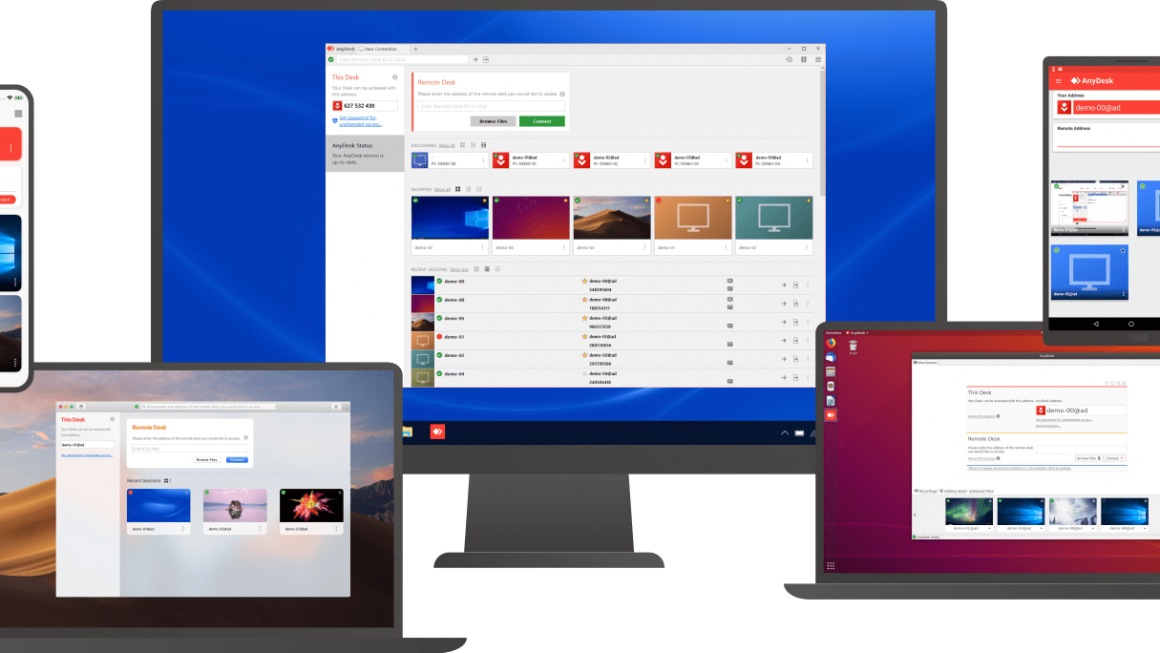
AnyDesk is a great solution for anybody who is in a pinch to either get assistance from another person or assist somebody with their computer issue. Best of all AnyDesk is free for personal use and is cheap enough to pay for commercial use if that is your need.
In this post I will walk you through using AnyDesk to receive help or use it to help another person. I’m going to start off with going over how to receive help because I am a techy and I often help others more than have them help me.
Use AnyDesk to receive help
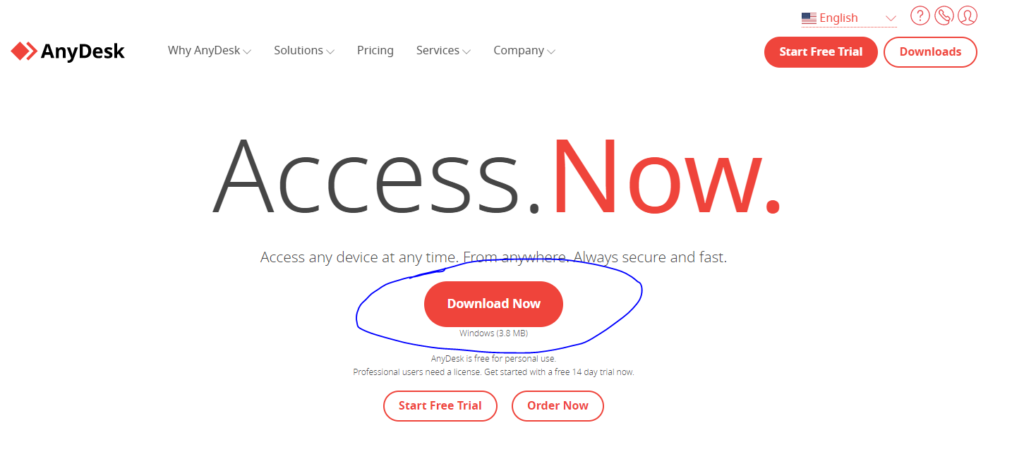
First you need to download AnyDesk so go to AnyDesk.com and click the red download button.
Now that you have it downloaded you need to click the AnyDesk icon to run it.
Give the user who is helping you the AnyDesk Number. It should be a string of 9 numbers.

When they remote in you will have to click Accept before they can see your screen.
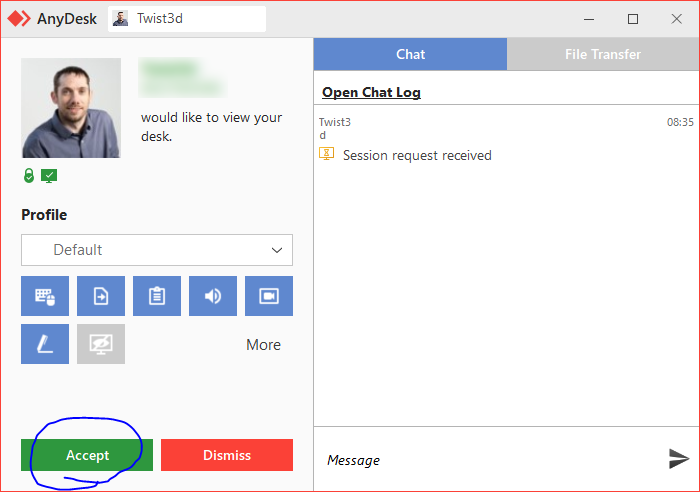
Now the user should be able to see your screen, move your cursor, etc.
How to help somebody using AnyDesk
- Install AnyDesk on your computer and open it up.
- Ask the person for their AnyDesk number (should be a string of 9 numbers)
- Type in their AnyDesk number into one of the two spots shown below
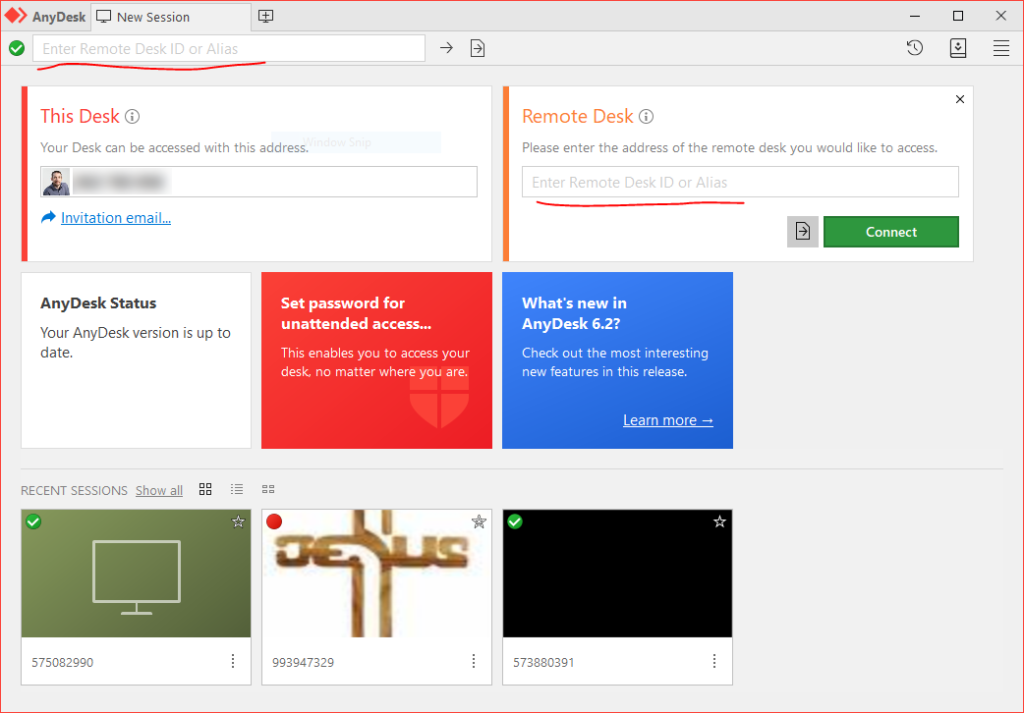
The other user will have to hit Accept before you can see their screen but once they do you should be able to see and control their computer.
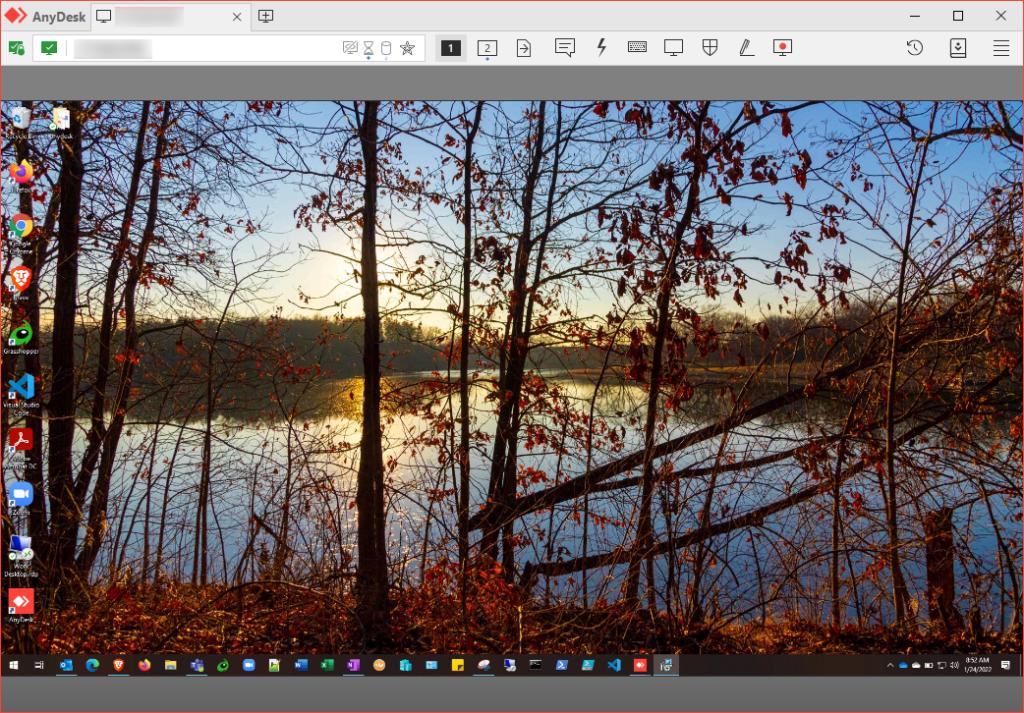
That’s all there is to it… If you have questions or issues using my guide please leave a comment below and I’ll get back to you.
Discover more from Matt Crawford
Subscribe to get the latest posts sent to your email.