
The instructions below will guide you through some steps that will allow a remote user to connect to your computer to assist you with issues remotely.
Step 1: Downloading the software
Visit teamviewer.com and click “Join Remote Control Session” or use this Direct Link to download the software.
Tip: Save it to the desktop so you can find the file easily for Step 2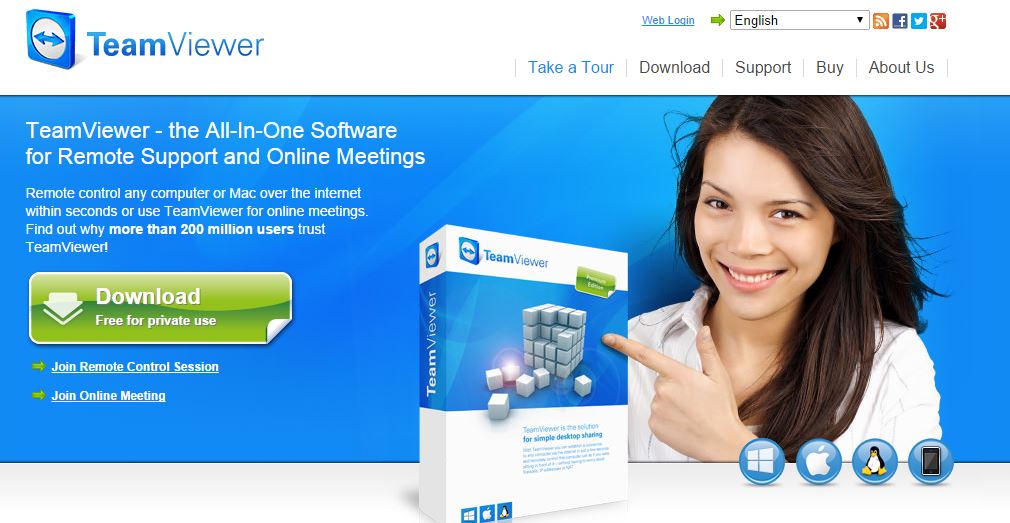
Step 2: Running the software
Once the download is complete, double click on the TeamViewerQS_en.exe file

It will open up and show you an ID and Password which you need to give to the person assisting you.
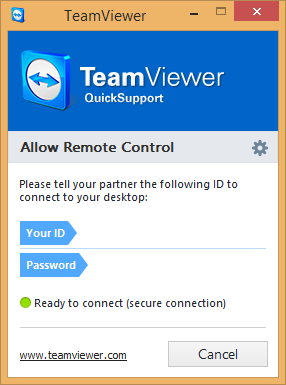
Share the information listed for Your ID and Password under Allow Remote Control with your friendly admin to allow remote assistance.
Note: Your desktop may turn black or your display may flickr once the remote user connects to your computer. This is Normal.
Share this:

Discover more from Matt Crawford
Subscribe to get the latest posts sent to your email.