
The instructions below will guide you through some steps that will allow a remote user to connect to your computer to assist you with issues remotely.
Step 1: Download the software
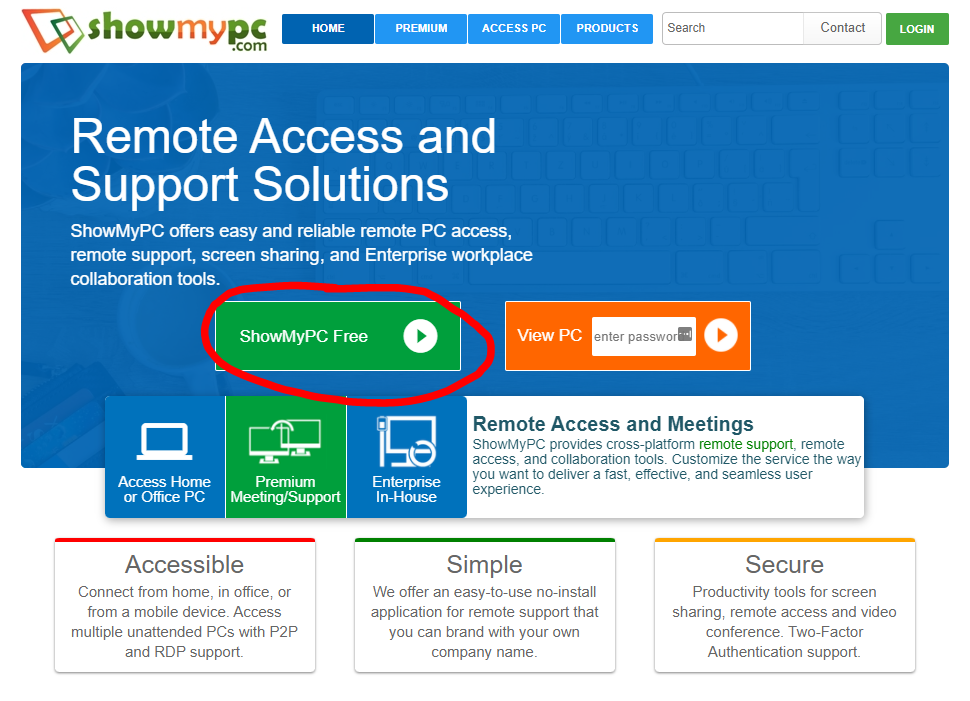
Visit Showmypc.com and click the green button labeled “ShowMyPC Free” as demonstrated below.
Tip: Save the file to the your desktop so you can find it easily for step 2
Step 2: Run the software
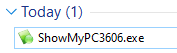
Once the download is complete, double click on the ShowMyPC exe file
Tip: if you get a message asking if u want to run the file click Yes.
Step 3: Setting up Remote Access
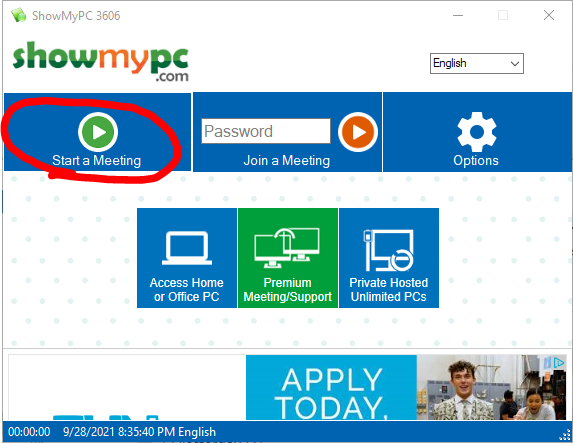
Click “Start a Meeting”
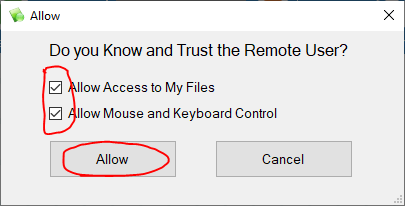
You likely will see an Allow box like the one below. Make sure you check both checkboxes and click Allow.
Now it should say connecting and generate a password in the same area where you saw “Start a Meeting”.
Give this password with the person assisting you with your computer.
Share this:

Discover more from Matt Crawford
Subscribe to get the latest posts sent to your email.
